How to Make Gemini Chat Wider for Code and Tables
Does a Gemini response feel cramped when you read code, compare columns, or work through a long answer? Chat layout in Gemini Power Kit lets you widen the conversation area. You can make the prompt box match it, so writing a long question feels more comfortable too.
Install the free Gemini Power Kit extension first, then open Gemini. If Gemini was already open when you installed it, refresh that tab before you try.
Increase Gemini chat width in four steps
Section titled “Increase Gemini chat width in four steps”- Open a Gemini conversation. In the top bar at the upper right, click the Chat layout icon immediately to the left of the Theme icon. Its panel opens beneath the shortcut.
- Set Chat Width to %. Move its slider while looking at the conversation. Try
80%as a starting point on a roomy desktop screen, then adjust until the text is comfortable to scan. The change appears on the current page as you move the control. - Check the prompt box. Sync Chat Width and Input Width is on by default, so the input area follows the chat width. Leave it on if you want both areas aligned.
- Return to Default when needed. Choosing Default for a width removes that width adjustment and gives Gemini its usual maximum width again.
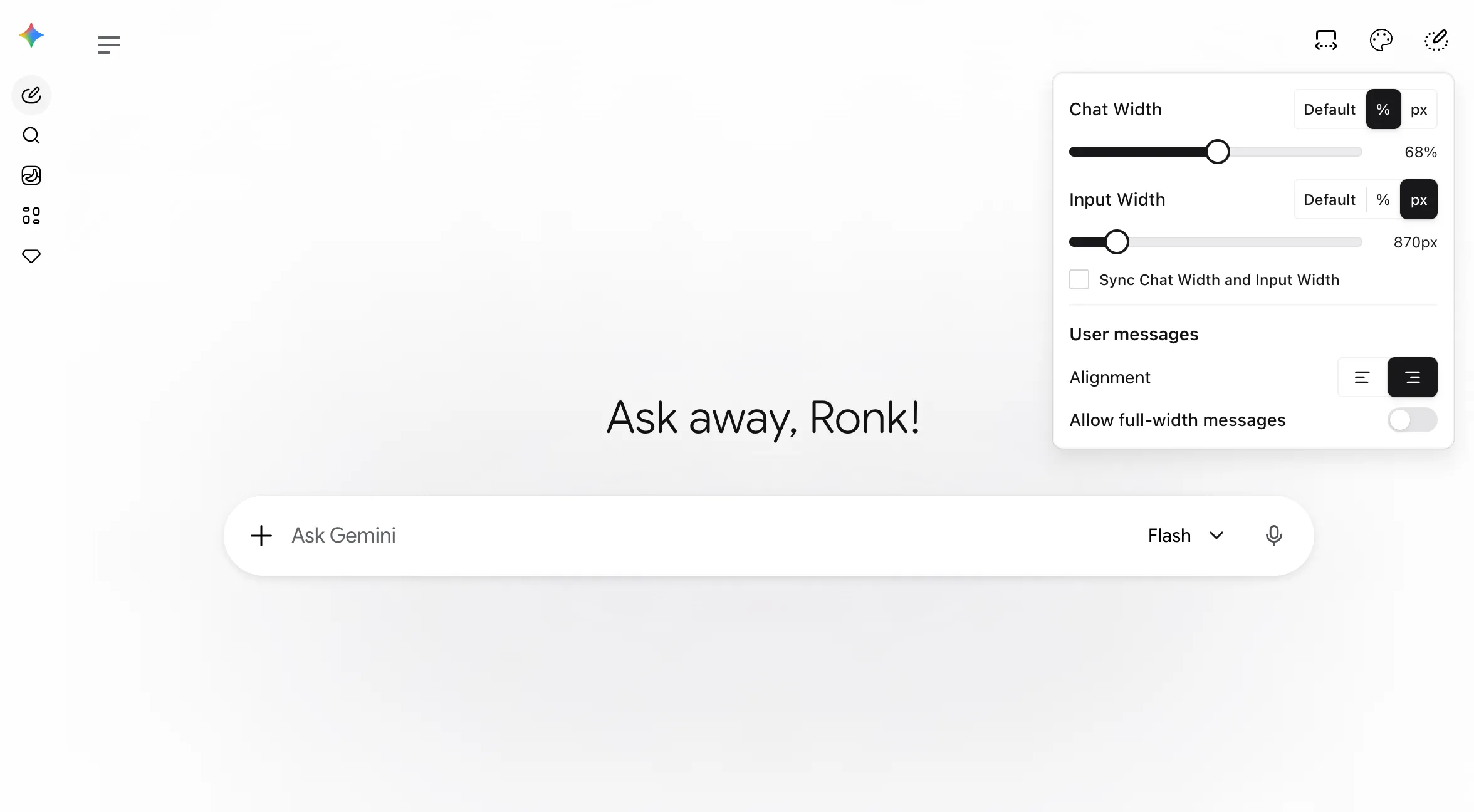
Feature panel: choose a width mode for the conversation and input area, then adjust the visible slider.
Can I make Gemini chat full width?
Section titled “Can I make Gemini chat full width?”Choose % and set Chat Width to 100% to use the maximum width available within the Gemini page. With Sync Chat Width and Input Width on, the prompt box follows too. Gemini’s sidebar and other page controls still take up their own space.
% sizes the maximum width relative to the page; px sets a fixed maximum. The controls allow 35%–100% or 700px–2000px. A pixel value is still limited by the space available in your browser window, so a narrow window will not suddenly show a 1,600-pixel chat. Try the layout on the screen you actually use rather than choosing the largest number automatically.
Widening the chat gives code and tables more horizontal room. Very wide content may still need its own horizontal scroll; the setting cannot guarantee every table fits at once. It also leaves font size and line spacing as they are.
Make the prompt box narrower than the chat
Section titled “Make the prompt box narrower than the chat”If you like a wide answer but a more focused writing area, turn off Sync Chat Width and Input Width. Then set Chat Width and Input Width separately. For example, keep the chat at 80% and try a narrower input. The controls remember their values, and changes stay in place when you return to Gemini later.
Under User messages, Alignment lets you put your own messages on the left or right. Allow full-width messages lets long prompts use more of the available chat width; short messages keep their natural size. These controls affect your messages, while Chat Width sets the conversation’s maximum width. The Chat layout feature guide explains each setting in more detail.
Where is Chat layout if the shortcut is hidden?
Section titled “Where is Chat layout if the shortcut is hidden?”Open Gemini Power Kit’s puzzle-piece entry near the bottom of Gemini’s sidebar, then choose Theme → Chat layout. Those controls still work if you have hidden the top-bar shortcut. To show the shortcut again, open Settings → Enhancements → Top bar customization and turn on Show Chat layout shortcut.
If you want the original widths, choose Default for both Chat Width and Input Width. If they are synced, changing either one to Default updates both. You can narrow the conversation again later without changing your theme or wallpaper.