
How to Navigate Long Gemini Chats with Chat Outline
See the structure of a long Gemini chat without scrolling through it message by message. Chat Outline lists the current conversation’s prompts and attachments in a clickable table of contents. Browse questions, image thumbnails, video covers, and file details, then select an entry to jump to its message and answer.
Install the free Gemini Power Kit extension first, then open Gemini. If Gemini was already open when you installed it, refresh that tab before you try.
Use Chat Outline as a Gemini table of contents
Section titled “Use Chat Outline as a Gemini table of contents”- Open a Gemini conversation with several prompts. Chat Outline works within the conversation you have open.
- Move your pointer over the outline icon (stacked horizontal lines) in the upper-left corner of the conversation area. The prompt list appears.
- Browse the outline and select a prompt or attachment entry. Gemini scrolls back to the original message; read its response just below it.
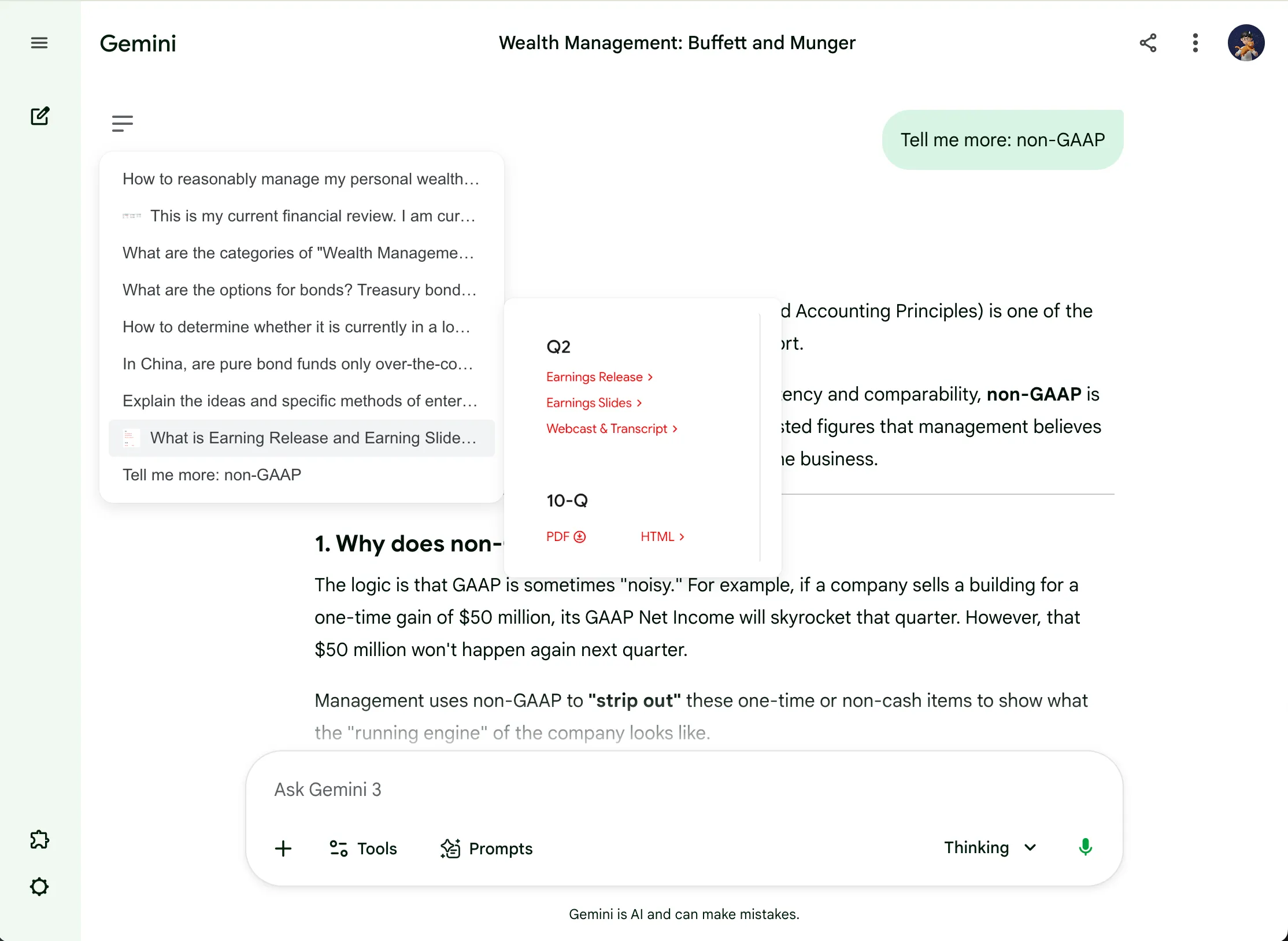
The stacked-lines icon in the upper-left corner opens Chat Outline. The prompt and attachment list appears below it, while the panel on the right previews an image from the hovered entry.
Suppose you asked Gemini to compare two options, then asked several follow-up questions. To review the original comparison, find your “Compare these two options” prompt in Chat Outline and click it. Read the answer below it and continue comparing without asking Gemini to repeat the earlier answer.
Remember the picture or file, but not the question?
Section titled “Remember the picture or file, but not the question?”You do not have to remember the exact words you used. Use the attachment details to recognize the message:
- Images: spot the thumbnail beside a prompt, then hover over the entry for a larger preview. This helps you tell similar screenshots apart.
- Videos: use the cover image and video marker to recognize an upload. Hover over the entry to see a larger cover preview.
- PDFs and other files: identify the file icon, then hover over the entry to check the file name and full prompt.
Even a message with attachments and no written question has an outline entry, identified by its file name, attachment labels, or count. Click the entry to return to the original message and review the attachment and Gemini’s answer there.
For example, if you uploaded several screenshots and repeatedly asked Gemini “Explain this,” use the thumbnails and previews to find the right screenshot without remembering which question accompanied it.
Keep the outline open while you work
Section titled “Keep the outline open while you work”The outline normally appears while you point to its icon and hides when you move away. To keep it visible as you read and scroll, click the outline icon once to pin it. Click the same icon again to unpin it and return to hover behavior.
Troubleshooting
Section titled “Troubleshooting”Where is Chat Outline, and how do I open it?
Section titled “Where is Chat Outline, and how do I open it?”Open a Gemini conversation. In the upper-left corner of the area showing your messages and Gemini’s replies, find the outline icon made of horizontal lines. Hover over it to show the prompt and attachment list. Click the icon to pin the panel while you read and look things up.
The outline icon is not there. How do I turn it on?
Section titled “The outline icon is not there. How do I turn it on?”Open the Gemini Power Kit puzzle-piece entry at the bottom of Gemini’s sidebar, choose Enhancements, and turn on Chat Outline.
Can I search across all my Gemini conversations?
Section titled “Can I search across all my Gemini conversations?”Chat Outline lists prompts in the conversation currently open. It is not a search across your other chats.
Why can’t I find an older prompt?
Section titled “Why can’t I find an older prompt?”The outline is built from messages currently present in the conversation page. If Gemini has not loaded older messages yet, scroll up in the conversation to load them, then check the outline again.
Does clicking a prompt send it again?
Section titled “Does clicking a prompt send it again?”No. It takes you to the existing message in the conversation; it does not resend or change it.