How to Get Notified When Gemini Finishes
Waiting for a long Gemini reply or Deep Research report? Gemini Power Kit can alert you when it is ready, so you can switch to another tab or app instead of repeatedly checking Gemini. Click the alert to return to the Gemini tab that produced it.
Install the free Gemini Power Kit extension first, then open Gemini. If Gemini was already open when you installed it, refresh that tab before you try.
Set up Gemini response notifications in four steps
Section titled “Set up Gemini response notifications in four steps”- Open Notifications. In Gemini, click the Gemini Power Kit puzzle-piece entry at the bottom of the sidebar, then select Notifications.
- Turn on “Notify me when replies are ready.” In Chrome or another Chromium browser, complete the Allow notifications step in the extension popup if it opens. Keep Only notify when I’m away from Gemini on if you want alerts after switching tabs, windows, or apps.
- Check your setup. Click Send test notification. You should see a browser notification. If nothing appears, check the browser and system settings in the notification troubleshooting guide.
- Try a real reply. Start a standard Gemini reply or a Deep Research report, then switch to another tab or app. When the completion alert appears, click it to return to the originating Gemini tab.
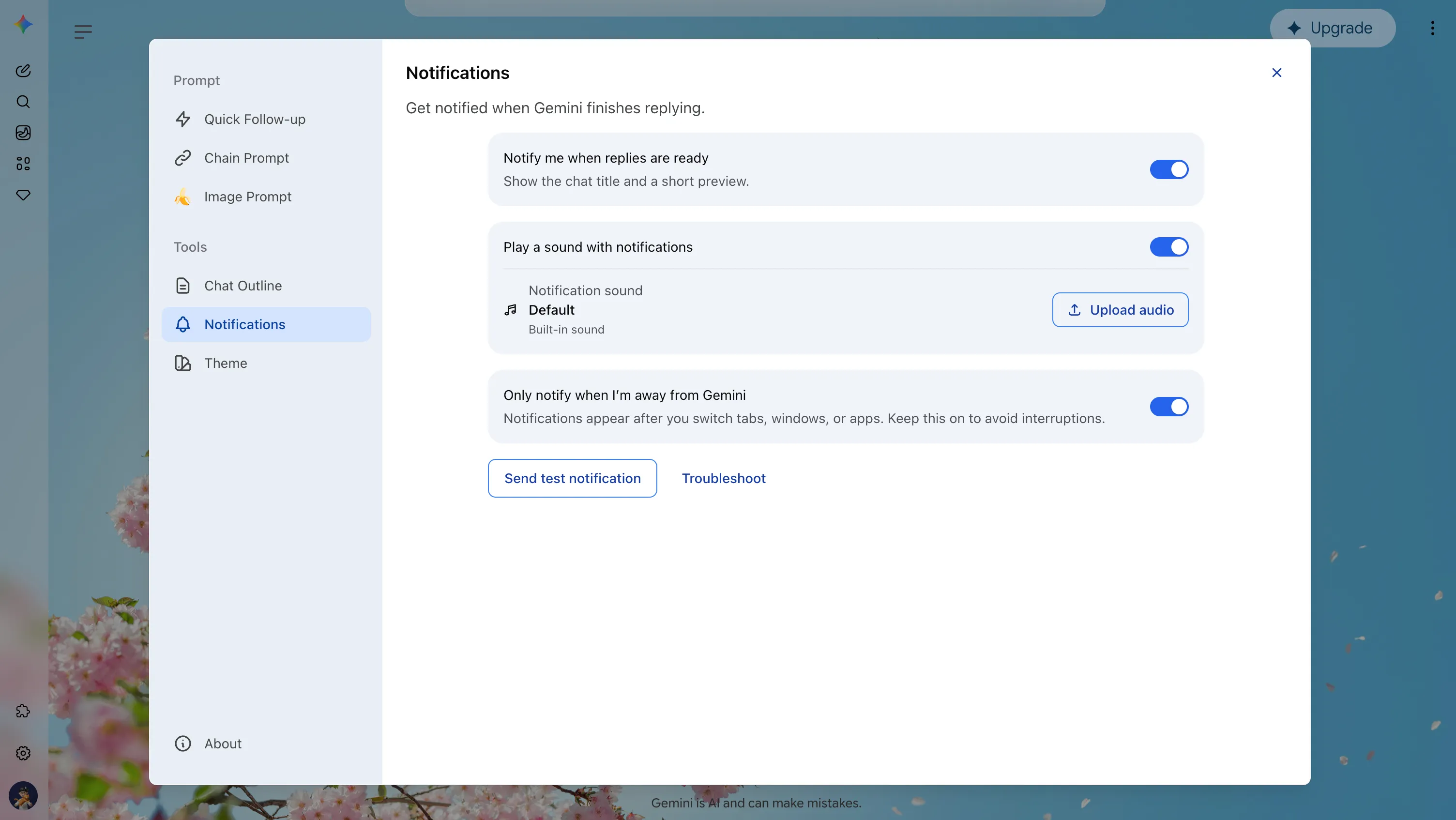
The Notifications panel has the main reply-alert switch, the away-from-Gemini switch, and the test button. The sound controls shown here are available on Chromium browsers.
For example, send Gemini a question that needs a detailed answer, switch to a document you are editing, and return when the alert arrives. The notification can include the chat title and a short preview. If those details are unavailable, it may show a general completion message instead.
Choose when Gemini completion alerts appear
Section titled “Choose when Gemini completion alerts appear”Only notify when I’m away from Gemini is on by default. With it on, an alert is suppressed while the Gemini page is visible and focused. Turn it off in Notifications if you also want an alert while you are looking at Gemini. This choice applies to standard replies and supported Deep Research completions.
Add a Gemini notification sound
Section titled “Add a Gemini notification sound”On Chromium browsers, you can also turn on Play a sound with notifications. The optional sound plays after a notification is created; under Notification sound, use the built-in sound or upload your own. Firefox does not show these separate sound controls and uses its browser and system notification behavior.
Why am I not getting Gemini notifications?
Section titled “Why am I not getting Gemini notifications?”First use Send test notification. If the test does not show, check notification permission, browser settings, and system Focus or Do Not Disturb settings in the troubleshooting guide. A test confirms that the extension can create an alert, but your browser or operating system can still hide it.
Completion alerts cover standard Gemini replies and tracked Deep Research reports. Other Gemini workflows, such as Canvas, may not produce one. Clicking an alert focuses the tab where the work started; if you changed conversations in that tab while waiting, you may need to return to the earlier conversation yourself.
For more on the controls and notification behavior, read Gemini Reply Completion Notifications.