
How to Change Your Gemini Chat Background and Theme
Want a custom wallpaper behind your Google Gemini chats? With Theme Bloom in Gemini Power Kit, drop an image onto Gemini to change the chat background and match the color preset in one action. Then adjust your theme for comfortable reading.
Install the free Gemini Power Kit extension first, then open Gemini. If Gemini was already open when you installed it, refresh that tab before you try.
Change your Gemini background and theme with one image drop
Section titled “Change your Gemini background and theme with one image drop”You do not need to pick a wallpaper and a matching color preset separately. Theme Bloom does both in one drop.
- Pick one image on your computer. A landscape photo is a good place to start.
- Drag it onto Gemini, outside the prompt box. Avoid the prompt box and its attachment area, so Gemini does not treat the image as a prompt attachment.
- Release when the Theme Bloom drop cue appears. The image becomes your wallpaper, the closest color preset is selected, and the new look spreads from the drop point.
One image drop — Theme Bloom applies the wallpaper and a matching color preset together.
Theme Bloom is on by default. If you have turned it off, enable it in Gemini Power Kit → Theme → Interactions → Theme Bloom. The Quick Start guide shows where to find the extension settings.
Use one PNG, JPG, WebP, or AVIF image up to 10 MB and 40 megapixels. If nothing happens, follow the checks below.
Set a custom Gemini wallpaper from a file
Section titled “Set a custom Gemini wallpaper from a file”Use the wallpaper settings when you prefer a file picker:
- Open Gemini Power Kit’s settings in Gemini. Select the puzzle-piece entry beside Gemini’s settings at the bottom of the sidebar.
- Go to Theme → Wallpaper and choose Select File. Pick your image, or drop it into the wallpaper upload area.
- Check the result in a conversation. Wallpaper turns on automatically, and your settings are saved. If the picture or text needs adjustment, use the tips below.
This route changes the wallpaper without Theme Bloom’s automatic color matching. Choose a preset under Theme → Colors if you want to pick the accent color yourself.
Like the Background, but Find the Text Hard to Read?
Section titled “Like the Background, but Find the Text Hard to Read?”Open a real conversation before adjusting anything. A picture that looks good on the empty home screen may feel busier behind several messages.
- The picture competes with messages? Increase Blur gradually. Try Message Glass Effect to give messages more separation from the wallpaper.
- Sidebar titles blend into the background? Enable Sidebar readability scrim, then adjust its intensity until the titles are clear.
- A face or another subject is cut off? Change Background Position to keep the part you care about visible.
- The page feels too bright or too dark? Try Light or Dark under Appearance, then check the same conversation again.
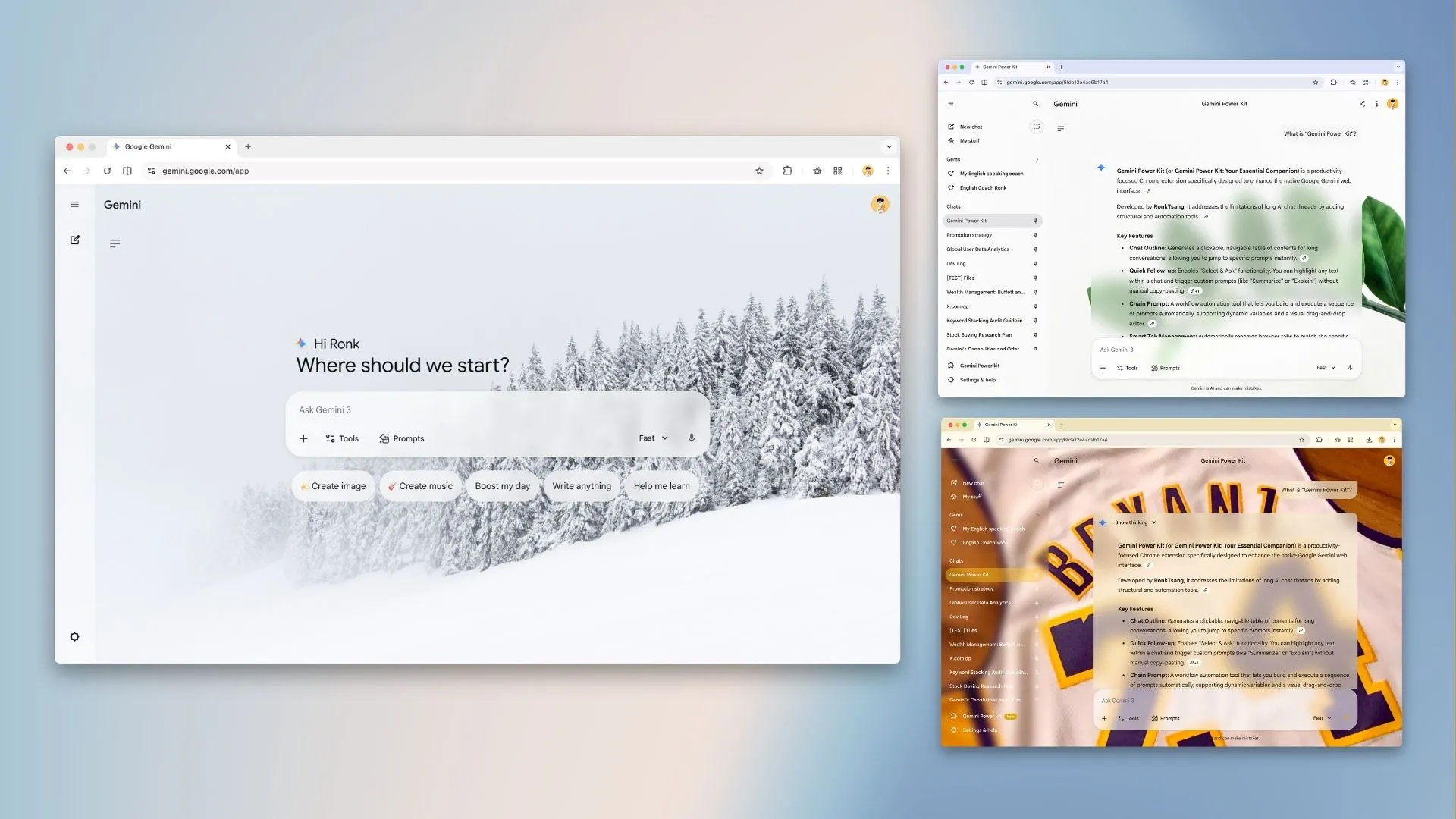
Background examples — snow, plants, and a sports theme. Compare how much detail sits behind the chat when choosing your own image.
Not sure which image to start with? Try a softly detailed landscape. For a snowy forest photo, start with Light mode, a center or right anchor, a little blur, and the sidebar readability layer. Adjust from there rather than changing every control at once.
See the Theme settings reference when you need all controls, ranges, and defaults.
Want to Go Back to a Plain Background?
Section titled “Want to Go Back to a Plain Background?”You can hide the wallpaper without deleting it. Open Theme → Wallpaper and switch Enable wallpaper off. Uploading another image or using Theme Bloom will enable it again.
To remove the saved image entirely, use the delete control beside the wallpaper. Deletion also turns wallpaper off; you will need to upload the file again to use it later.
Theme Bloom changes the color preset too. Turning wallpaper off does not undo that color choice. Choose a preset under Theme → Colors if you also want to change the colors.
Something Did Not Work? Start Here
Section titled “Something Did Not Work? Start Here”Why did my image become a prompt attachment?
Section titled “Why did my image become a prompt attachment?”You dropped it inside Gemini’s prompt box or attachment area. For Theme Bloom, avoid those areas and release when the Theme Bloom cue appears. To send an image to Gemini as part of a prompt, keep using the prompt box as usual.
Why does dragging an image not change the background?
Section titled “Why does dragging an image not change the background?”Check these in order:
- If you just installed the extension, refresh Gemini and wait for the page to finish loading.
- Make sure Theme → Interactions → Theme Bloom is on.
- Drag one supported image file from your computer, within the 10 MB / 40 megapixel limits, and drop it outside the prompt box and attachment area.
If dragging still does not work, use Theme → Wallpaper → Select File to apply the background another way.
Can I use a GIF or video as my wallpaper?
Section titled “Can I use a GIF or video as my wallpaper?”The wallpaper upload supports PNG, JPG, WebP, and AVIF images. GIF and video files are not supported. Try a still image in one of the supported formats.
Is changing the Gemini background free?
Section titled “Is changing the Gemini background free?”Yes. Gemini Power Kit’s wallpaper and theme controls are free.
Is my wallpaper uploaded to the developer?
Section titled “Is my wallpaper uploaded to the developer?”No. It is stored in your browser. Gemini Power Kit does not send it to developer-controlled servers. Read the privacy policy for details.
Will this change the background of a photo generated by Gemini?
Section titled “Will this change the background of a photo generated by Gemini?”These steps change the background behind Gemini’s chat interface. To edit a generated photo, use Gemini’s image-editing workflow instead.