
How to Delete Multiple Gemini Chats at Once
Deleting unwanted Gemini chats one at a time means repeating the same menu and confirmation for every conversation. Gemini Power Kit’s Bulk Delete lets you select several chats in the Recents sidebar, review the batch, and clear them in one pass. You can choose individual chats or a recent batch while leaving pinned work out of the quick selection.
Install the free Gemini Power Kit extension first, then open Gemini. If Gemini was already open when you installed it, refresh that tab before you try.
Bulk delete Gemini chats in four steps
Section titled “Bulk delete Gemini chats in four steps”- Open Bulk Delete. In Gemini, expand Recents in the sidebar if needed. Select the Bulk delete icon beside the Recents heading. Checkboxes appear next to the available chats.
- Choose the chats. Tick individual conversations, or use Select 50 recent for a batch. Select Change to choose 10, 20, 30, or 50. If you want the shortcut to skip pinned chats, turn on Exclude pinned before selecting; the button changes to Select 50 unpinned (or your chosen number).
- Review the selection. Check the ticked rows and the count on Delete (N). Exclude pinned affects the quick batch selection; it does not remove pinned chats you already selected manually. Use Deselect pinned to remove those from the current selection, or Deselect all to start over.
- Confirm only when the batch is right. Select Delete (N), then read the confirmation prompt. Deleted Gemini chats cannot be undone through Bulk Delete. Confirm to start deleting the selected chats. Wait for the progress indicator to finish before starting another batch.
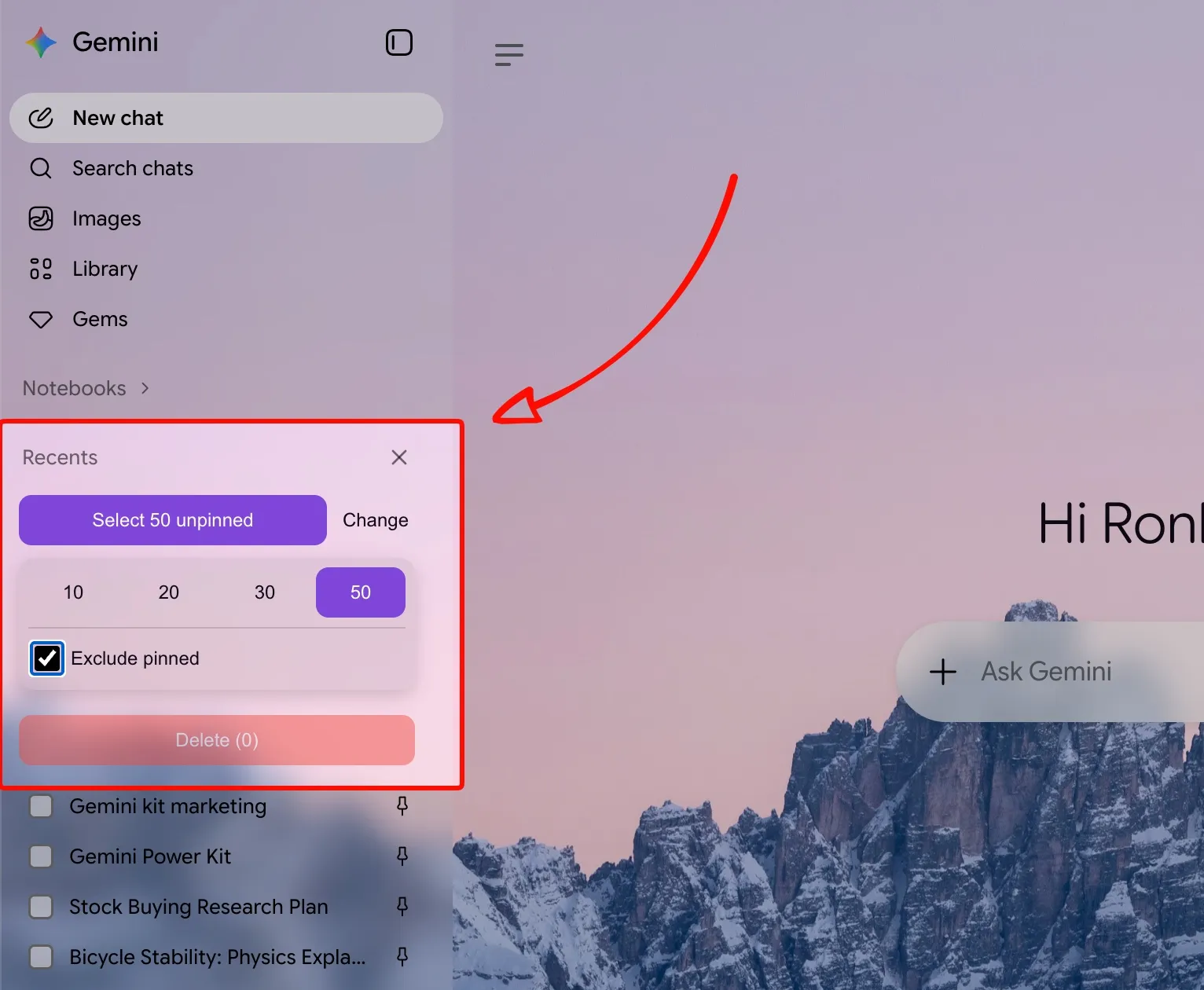
Bulk Delete panel — choose a batch size, use Exclude pinned for the quick selection, check the conversation rows, then review Delete (N).
Can I delete all Gemini chats at once?
Section titled “Can I delete all Gemini chats at once?”Bulk Delete works with chats selected in the current Gemini Recents sidebar session. The recent-batch shortcut can scroll to load older chats until it reaches the chosen count or Gemini stops loading them. It is a targeted cleanup of selected sidebar chats, not a command to erase every conversation in your account history. If fewer eligible chats load, review the actual checkboxes and Delete (N) count before confirming.
You can leave Bulk Delete mode with the same icon or Esc before confirming; that clears the selection without deleting anything. Deselect all clears the selection while keeping the panel open.
If loading or deletion stops
Section titled “If loading or deletion stops”If Gemini cannot load enough recent chats, the panel warns you. Try selecting again or reload the Gemini page, then review the new selection. If deletion fails partway through, the process stops and shows an error. Chats deleted before the failure remain deleted; inspect Recents before trying another batch. Pressing Esc during deletion stops the remaining queue, but does not restore chats already deleted.
Bulk Delete is on by default. If its icon is missing, open Gemini Power Kit → Tools → Enhancements in Gemini and turn on Bulk Delete. For every control and more usage examples, see the Bulk Delete feature guide.