
How to Quote a Gemini Response and Ask a Follow-up
Want to ask a follow-up about one sentence in a long Gemini answer? Quick Follow-up in Gemini Power Kit lets you quote selected text and reply to that passage without copying and pasting. Highlight the words, choose Ask Gemini, and write your question with the quote visible above the prompt box.
Install the free Gemini Power Kit extension first, then open Gemini. If Gemini was already open when you installed it, refresh that tab before you try.
Select text and choose Ask Gemini
Section titled “Select text and choose Ask Gemini”- Select the words you mean in a Gemini response. Highlight a sentence or paragraph in the answer. The Quick Follow-up capsule appears beside the selection.
- Choose Ask Gemini. Gemini Power Kit places your selection in a quote chip above the prompt box and focuses the box for your question.
- Check the quote and type your question. For example, after selecting a sentence about a project’s timeline, ask: “What assumption makes this timeline realistic?” You can also ask how the selected point compares with another option in the answer.
- Send your question. Ask Gemini prepares the quoted context, but you decide what to write and when to send it.
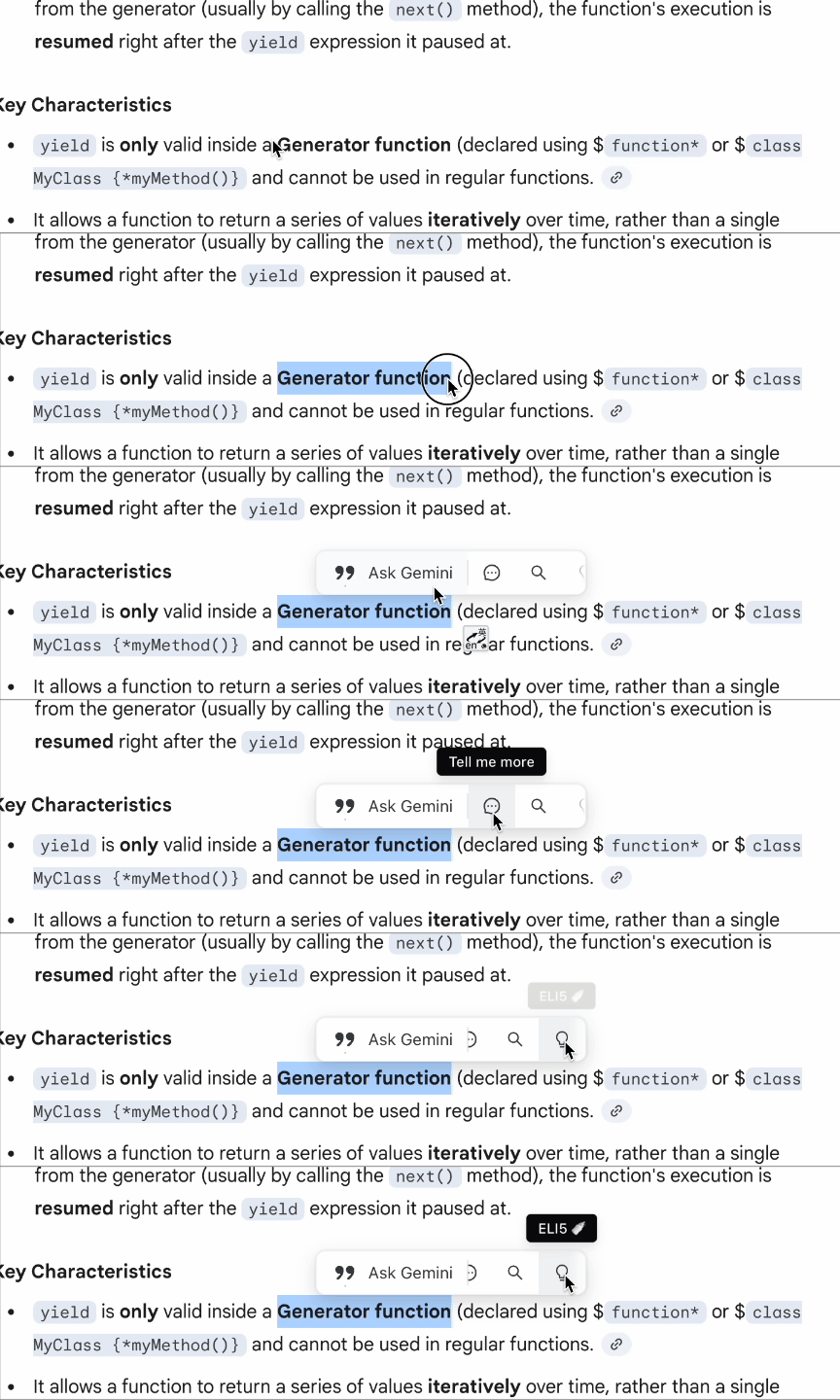
Entry: select text in Gemini’s reply, then choose Ask Gemini from the capsule beside your selection.
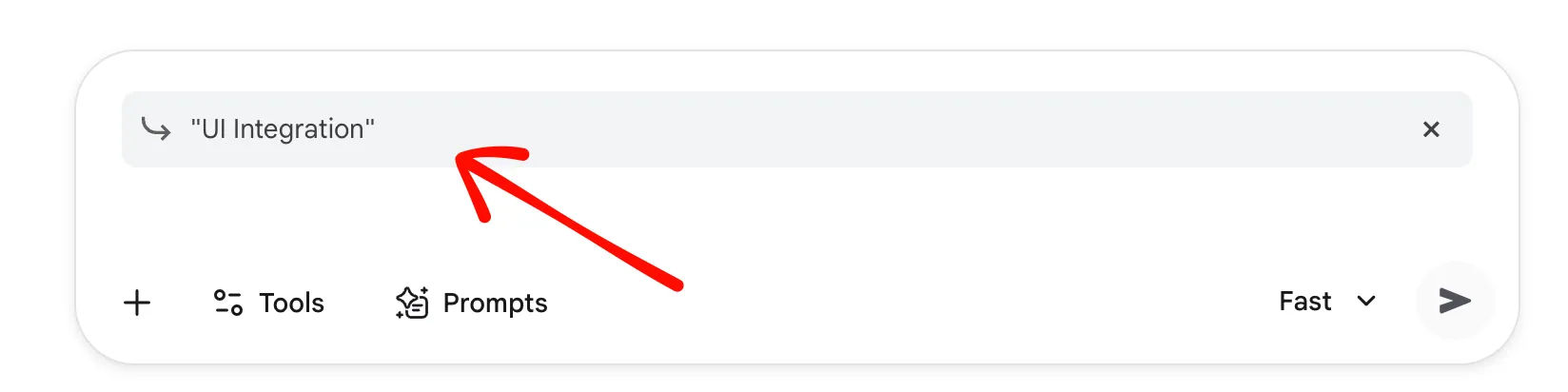
Result: the quote chip shows which part of the answer your next question refers to.
If you selected the wrong passage, click the quote chip’s × before sending, then select the text you want to discuss.
Reuse follow-up prompts with saved skills
Section titled “Reuse follow-up prompts with saved skills”When you often ask for the same treatment of selected text, add a reusable action. Open Gemini Power Kit’s puzzle-piece entry at the bottom of Gemini’s sidebar, go to Quick Follow-up, and make sure Enable Quick Follow-up is on. Under Skill Management, choose Add Skill. Give it an icon and name. In Prompt Content, keep the Selected Text chip in place, write “Explain” before it and “step by step” after it, then save the skill.
Now select text in a Gemini response and choose that skill’s icon in the capsule. The selected words fill the placeholder, and the completed prompt sends automatically. Use Ask Gemini when you want to write or revise the question before sending; choose a saved skill when its wording is already right for the task. The capsule can scroll horizontally to reveal more saved icons.
If the capsule does not appear after you select response text, check Quick Follow-up → Enable Quick Follow-up in Gemini Power Kit settings. For more on editing and ordering skills, see the Quick Follow-up feature guide.
Questions about quoting Gemini responses
Section titled “Questions about quoting Gemini responses”How do I quote only part of a Gemini response?
Section titled “How do I quote only part of a Gemini response?”Highlight just the sentence or paragraph you want to discuss, then choose Ask Gemini. Select a focused passage: long quote previews are shortened, and very long selections may also be shortened in the context sent to Gemini. This workflow quotes text in Gemini’s responses; it does not select content inside an image or PDF attachment.
Does Ask Gemini send my follow-up automatically?
Section titled “Does Ask Gemini send my follow-up automatically?”Ask Gemini attaches the quote and leaves the question for you to write and send. A saved skill runs its preset prompt and sends it automatically when you click its icon. Choose the action that matches whether you want to compose a question or reuse a finished prompt.