
System
Follows your operating system and Gemini native theme behavior.
Use it when you already switch your whole device between Light and Dark.
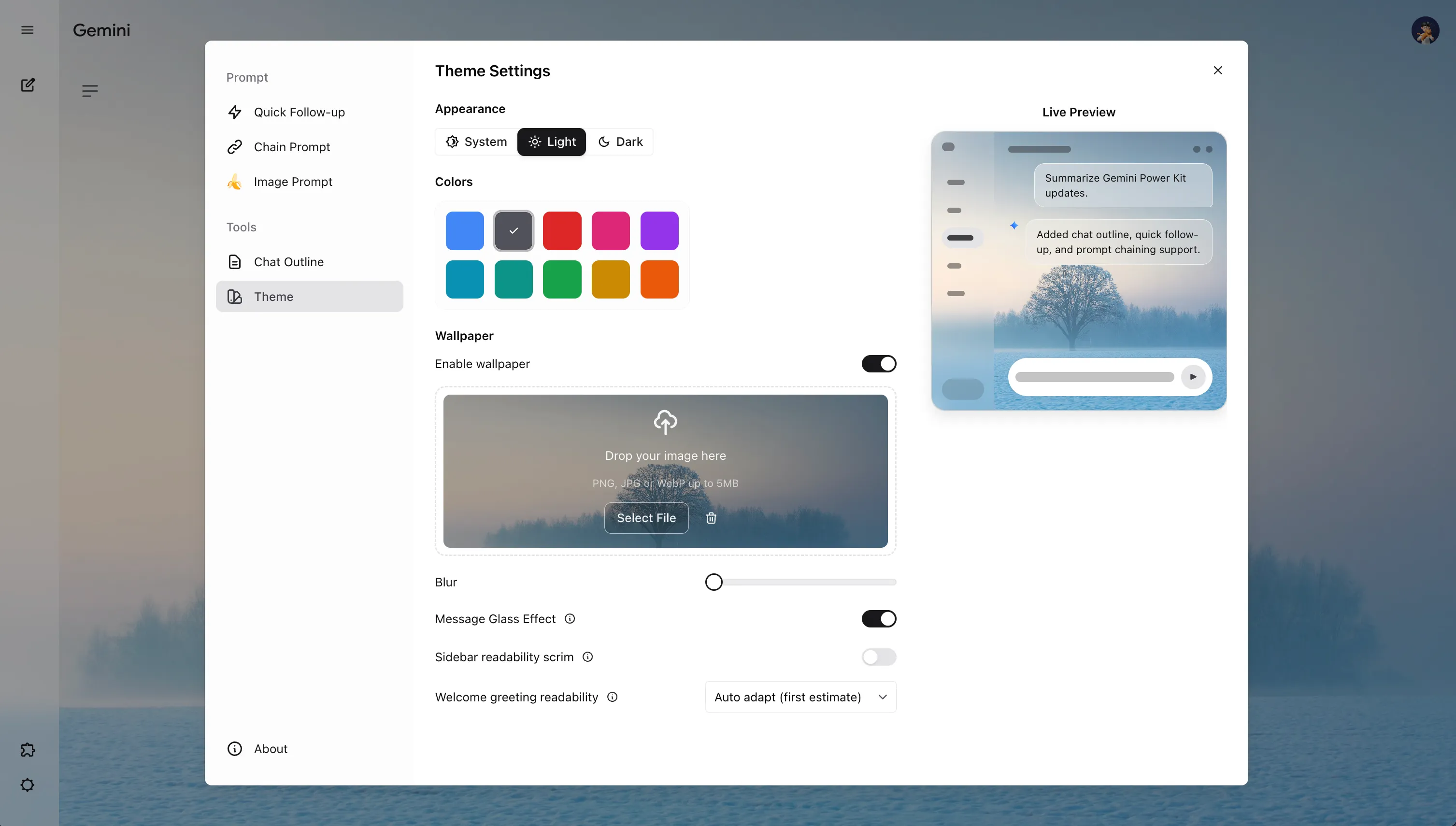
Theme helps you turn Gemini into a workspace that is easier to read, easier to scan, and better suited for long sessions.
Instead of only changing colors, it gives you three layers of control:
Default Gemini styling works for short chats, but longer sessions usually expose a few friction points:
Theme solves those issues inside one settings panel, with live preview and automatic saving.
Follows your operating system and Gemini native theme behavior.
Use it when you already switch your whole device between Light and Dark.
Forces Gemini into Light mode.
Use it for daylight work, screenshots, or a cleaner paper-like interface.
Forces Gemini into Dark mode.
Use it for night work, OLED screens, or stronger visual separation between content blocks.
Colors lets you switch between 10 preset swatches, including the default blue style and stronger alternatives like gray, red, cyan, teal, green, yellow, and orange.
Use it when:
Wallpaper settings are where visual style and readability work together.
Turns the wallpaper layer on or off. Detailed wallpaper controls appear after it is enabled.
Turn it on when you want a more personal workspace. Turn it off if you want the cleanest native look.
Uploads a wallpaper image. Supports PNG, JPG, and WebP up to 5MB. Uploading an image enables wallpaper automatically. Removing the image disables it automatically.
Use a landscape image with soft contrast if you want the most balanced result.
Controls wallpaper blur from 0 to 20px. Higher values reduce background detail and make text stand out more.
Start low for subtle texture. Raise it when the wallpaper competes with content.
Adds a glass-like surface to user and model messages so chat content separates more clearly from the wallpaper.
Turn it on when the chat area feels visually mixed with the background. Keep it off on lower-end devices if you want the lightest rendering cost.
These are the most important settings if you use Light mode with wallpaper.
Adds a soft readability layer behind the left sidebar so labels and history items remain legible on top of wallpaper.
Turn it on when sidebar text blends into a bright or detailed wallpaper. This setting is designed for Light mode.
Controls how strong the sidebar readability layer is, from 0% to 100%.
Raise it if sidebar text still feels noisy. Lower it if you want more of the wallpaper to stay visible.
Controls text adaptation for the Gemini home welcome area when wallpaper is enabled. This setting mainly affects the homepage in Light mode.
Use it when the large welcome greeting becomes hard to read against your wallpaper.
For Welcome greeting readability, the options mean:
Leave Gemini’s original greeting color unchanged.
Recommended default. The extension estimates whether the wallpaper under the greeting needs lighter text.
Applies a stronger manual fix when the homepage greeting still disappears into the background.
When you first use wallpaper-related settings, the current defaults are:
off5pxMessage Glass Effect is offSidebar readability scrim is onScrim intensity starts at 20%Welcome greeting readability starts at Auto adapt (first estimate)System + a preset color + no wallpaper.Light or Dark + preset color + wallpaper.Sidebar readability scrim, keep Welcome greeting readability on Auto adapt (first estimate), then raise Blur if content still feels busy.Force light text when the homepage greeting is still hard to read.Settings -> Theme.Appearance first so Light or Dark behavior is stable.Blur, then turn on readability helpers only where needed.