Quick Follow-up
Overview
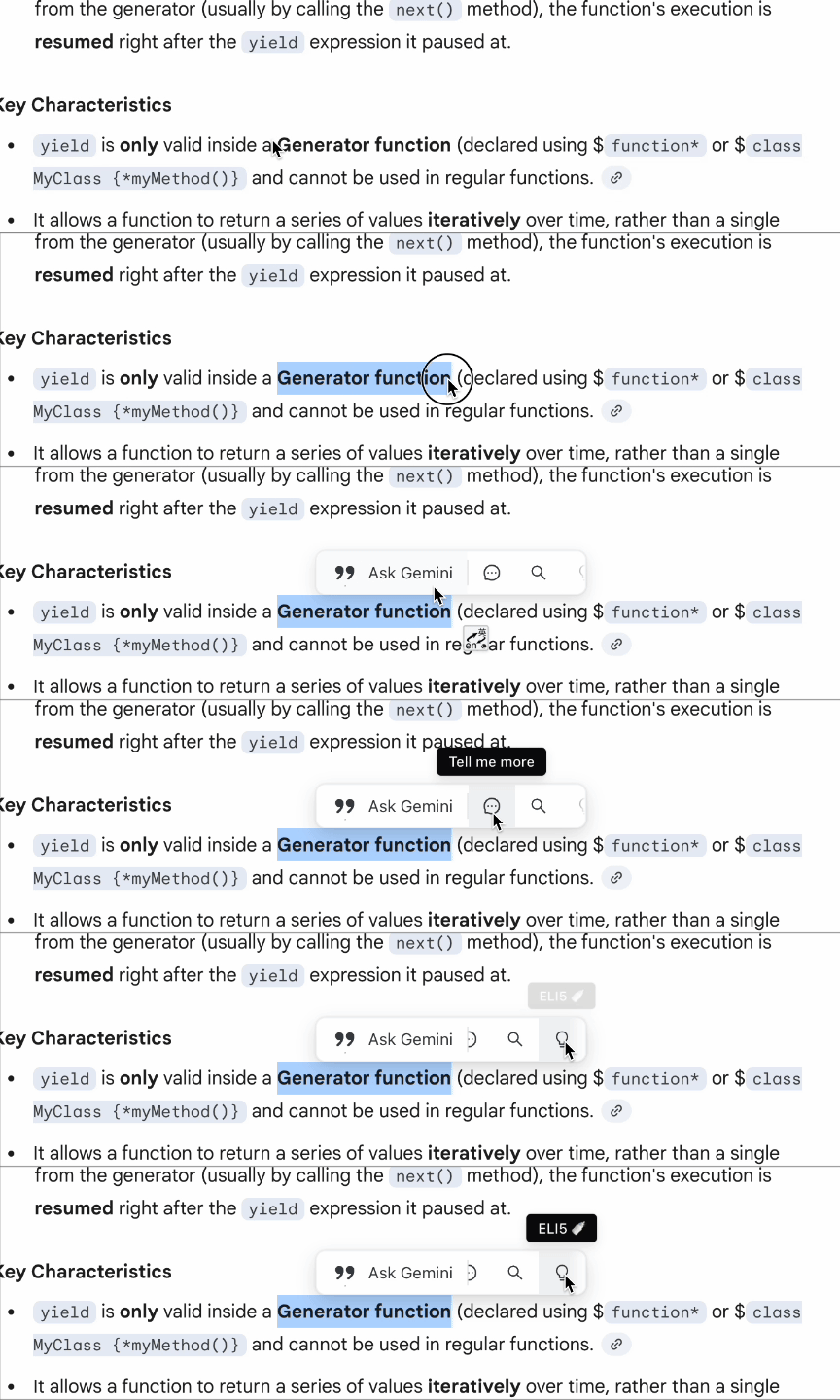
Section titled “Overview”Quick Follow-up is a selection-based interaction layer in Gemini. After you select text in a response, a capsule action bar appears near your cursor.
It has two modes:
- Ask Gemini: attach the selected text as reference context, then you continue writing and send manually.
- Custom Prompt: insert Selected Text into your saved template and auto-send in one click.
Key Capabilities
Section titled “Key Capabilities”- Continue follow-up questions without copy-pasting selected text.
- Keep quoted context visible above the input box while writing.
- Build reusable one-click prompts for translation, explanation, summarization, and other repeated tasks.
- Reorder prompt icons so frequent actions are always first in the capsule bar.
Quick Workflow
Section titled “Quick Workflow”Ask Gemini
Section titled “Ask Gemini”- Select text in any Gemini response.
- Click Ask Gemini in the capsule.
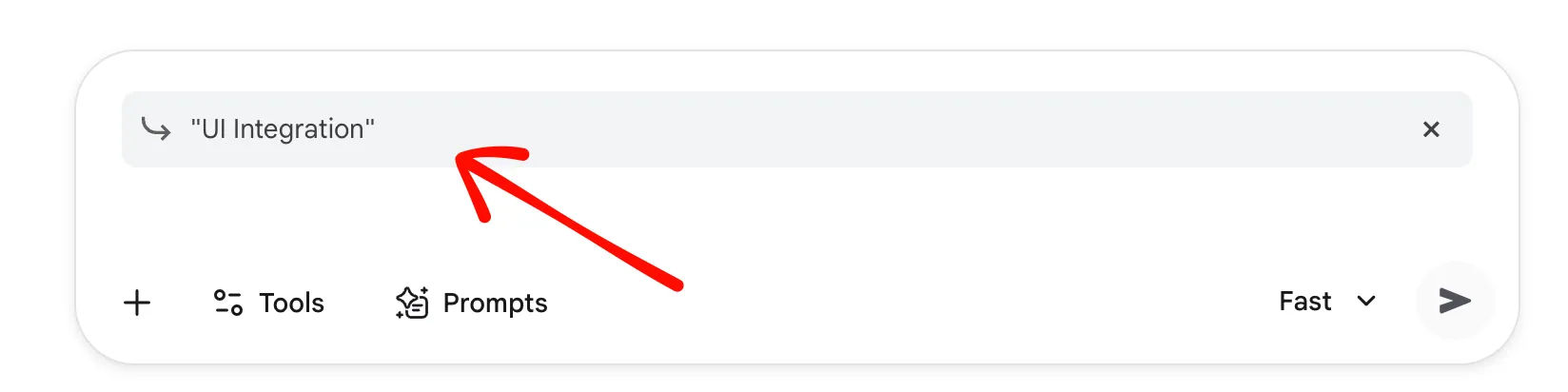
- Confirm quote context appears above the input box.
- Type your follow-up question and click Send.
- If you no longer need the quote context, click the close button on the quote status UI.
Ask Gemini examples:
Compare this point with the previous answer and explain the difference.Summarize the quoted paragraph in 3 bullets.Rewrite the quoted text in simpler English.
Custom Prompt
Section titled “Custom Prompt”Use Custom Prompt when your follow-up pattern is repetitive and should run in one click.
Common scenarios:
- Translation to a fixed language.
- Fixed-format summarization (for example, bullets + action items).
- Code explanation using a specific style (for example, ELI5).
- Fact-checking with a defined output structure.
Add A Custom Prompt
Section titled “Add A Custom Prompt”- Open Gemini Power Kit sidebar.
- Go to Settings -> Quick Follow-up.
- Turn on Enable Quick Follow-up.
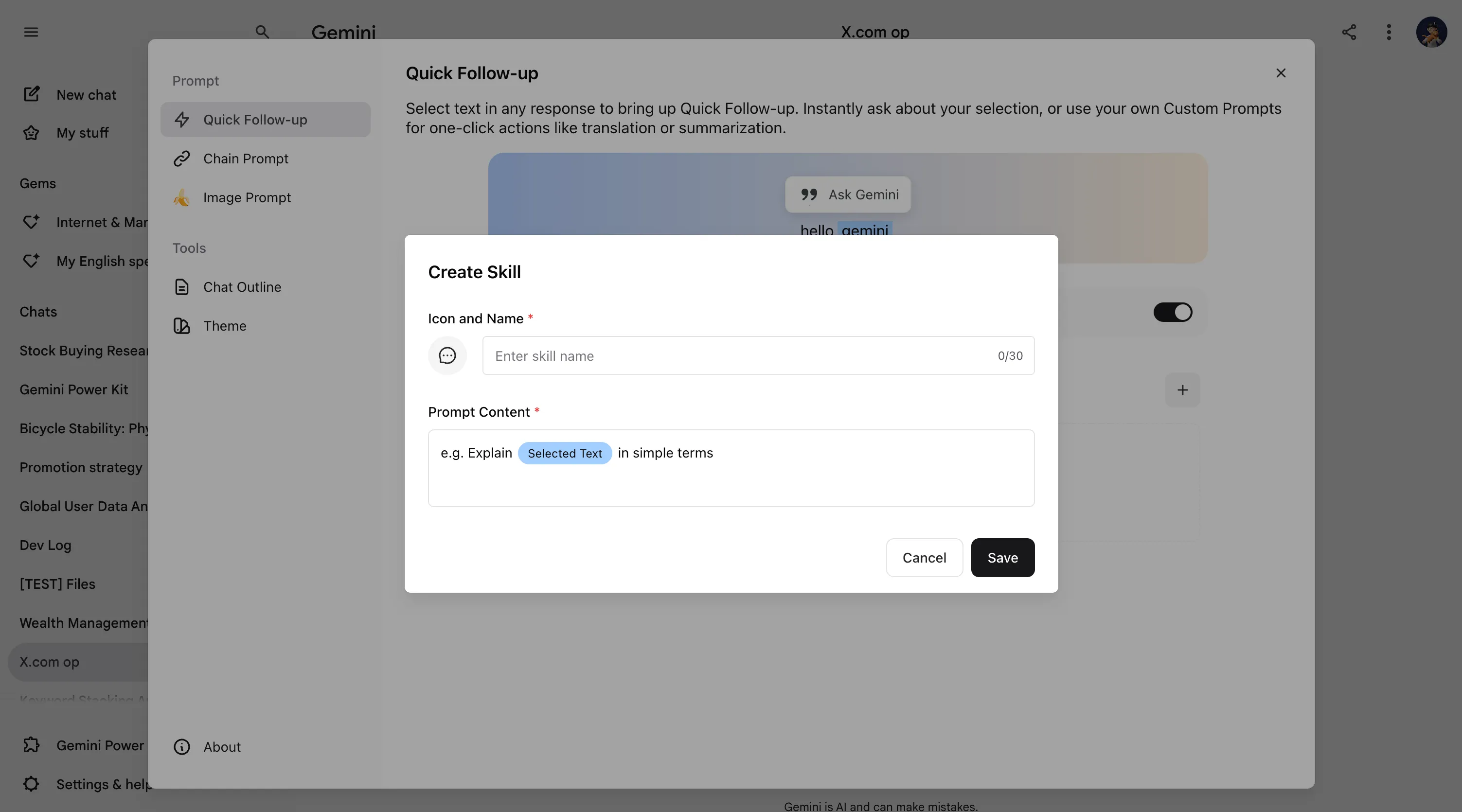
- In Custom Prompt, click the add button (
+). - Fill icon, name, and template, then click Save.
- Back in chat, select text and click the new icon to run it.
Complete Field Guide
Section titled “Complete Field Guide”- Icon: visual identifier for fast recognition in capsule bar.
- Name: required, up to 30 characters, used as tooltip label.
- Prompt Content: required and should include Selected Text.
- Placeholder rule: Selected Text is replaced by your current highlighted text at runtime.
- Execution behavior: custom prompt runs and sends automatically after replacement.
Image notes:
- The modal label is Icon and Name with an input placeholder like Enter skill name.
- The template field is Prompt Content, for example:
e.g. Explain [Selected Text] in simple terms.
Custom Prompt examples:
Translate to Japanese and keep tone formal: [Selected Text]Explain this code step by step and include time complexity: [Selected Text]Extract 5 key points and 3 risks from this text: [Selected Text]
Built-in starter templates:
- Tell me more:
Explain [Selected Text] in detail - Search:
Search web for latest info on: [Selected Text] - ELI5:
Explain [Selected Text] like I'm 5 years old