
Chat Outline
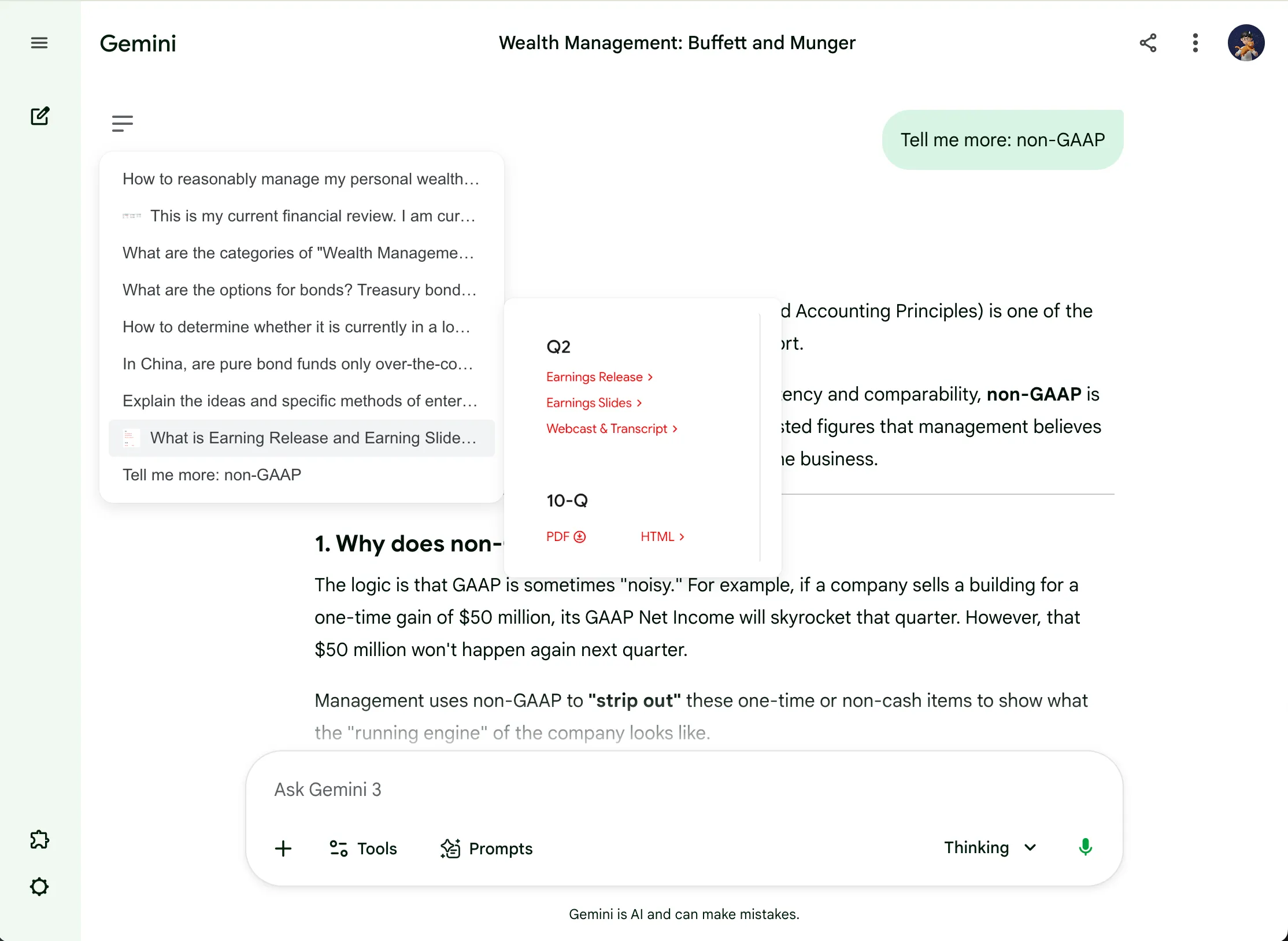
Overview
Section titled “Overview”Chat Outline is a navigation panel for the current Gemini conversation. It converts long chat history into a structured outline so you can jump directly to the part you need.
Key Capabilities
Section titled “Key Capabilities”- Jump to earlier prompts and responses without continuous scrolling.
- Keep context while comparing different sections of the same conversation.
- Use Pin mode to keep the panel visible during long research sessions.
- Hover outline items with media to preview images/videos before jumping.
Quick Workflow
Section titled “Quick Workflow”- Open Chat Outline from Gemini Power Kit sidebar.
- Hover the floating trigger to open the outline.
- Click an outline item to jump to that message.
- Switch to pinned mode when you need persistent navigation.
Pin / Unpin Mode
Section titled “Pin / Unpin Mode”- Click the Chat Outline floating icon once to pin the panel.
- The panel stays visible while you scroll and navigate.
- Click the same icon again to unpin.
- After unpinning, the panel returns to hover-based show/hide behavior.
Hover Image Preview
Section titled “Hover Image Preview”- In the outline list, find items that include image/video attachments.
- Hover the item button to open the preview panel on the right.
- Move between items to compare previews quickly.
- Click the item when you want to jump to its exact position in chat.